Project 4 setup guide
This document sets up your computer for CSE490’s in-class projects. There are two ways to do it, and they end in the same place. Pick one.
Option 1: the wizard (recommended)
A small program that walks you through each step, with a picture of where to click, and checks each one on your computer. Download it once; every week it fetches that week’s project by itself. Requires Python 3.9+.
Download wizard-cse490.zip. It lands in your Downloads folder.
Mac
Double-click the zip in Downloads to get the wizard folder. Then, in Terminal:
cd ~/Downloads/wizard
python3 wizard.py
Windows
Right-click the zip in Downloads, choose “Extract All”, open the wizard folder it makes, and double-click SETUP-WINDOWS.bat. If the blue “Windows protected your PC” box appears: “More info”, then “Run anyway”.
Option 2: by hand
Read the section for your computer below (Mac, Windows or Linux) and do each step yourself. The steps are the same ones the wizard walks.
Mac
1. Project 3 folder
The folder holds harness.py and hello_world.py from Project 3. If harness.py is gone, unzip your P03-submission.zip and move harness.py and hello_world.py into the folder. With no submission to go back to, the Project 3 starter (starter.zip) gives you the pseudocode harness to finish first.
2. Course key
Your Project 3 folder already holds .env with your course key. Open it and check that it still has these two lines:
LITELLM_BASE_URL=https://llmproxy.cs.washington.edu
LITELLM_API_KEY=<your key here>
with your key in place of <your key here> (it starts with sk). If the file is missing or the key line is empty, make the file again: in VS Code, right-click the empty space in the Explorer, choose New File, name it exactly .env, and paste the two lines in.
3. AI chat in VS Code
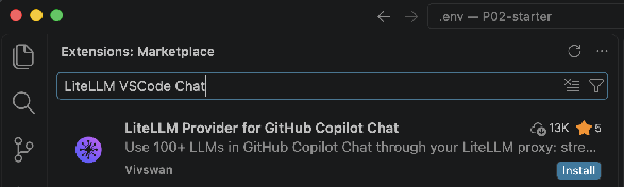
In VS Code, click the Extensions icon in the bar on the far left: four squares. Or press Cmd+Shift+X.
Search for LiteLLM. Install “LiteLLM Provider for GitHub Copilot Chat” by Vivswan.
Open the Command Palette with Cmd+Shift+P. Run “Preferences: Open User Settings (JSON)”.
Add this entry inside the outer braces:
"litellm-vscode-chat.servers": [
{
"label": "CSE 490",
"baseUrl": "https://llmproxy.cs.washington.edu",
"auth": { "apiKey": "<your key here>" }
}
]
Replace <your key here> with your API key. Save the file.
This week the AI answers in chat and you type every change yourself. Add this line beside the entry, with a comma between them, and save:
"chat.agent.enabled": false
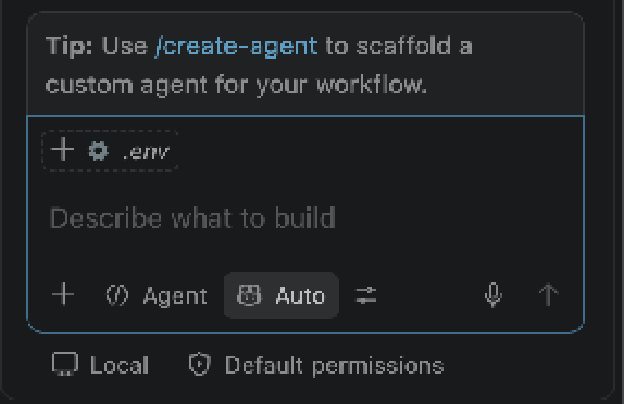
Open the chat panel: the speech-bubble icon at the top, or Ctrl+Cmd+I. Click the model picker at the bottom of the chat box. It reads Auto until you choose, and the course models are not on its first screen: type the model’s name in the search box at the top of the picker, haiku for example, and pick the entry marked CSE 490. If nothing appears, click “Manage Models…”, then “Add Models”, then “LiteLLM”, choose the CSE 490 server, and tick the models.
4. Harness check
In VS Code, choose Terminal, then New Terminal. It opens in your Project 3 folder.
Run:
python3 harness.py
It waits for your first message. If it stops with an error before that, read the last line of the error: a missing package names itself, and an “invalid key” means .env is wrong (the Course key step puts it right).
Type my name is Sam and press Enter. Then type spell my name backwards and press Enter. A reply with maS means the harness keeps the conversation between turns. A reply that does not know the name means it sends only the latest message: go back to the chatbot loop in the Reference of the Project 3 handout.
Type read hello_world.py and tell me what it says, and press Enter. A reply that quotes the file means the read tool from Project 3 is there. Press Ctrl+C to stop the harness.
Windows
1. Project 3 folder
The folder holds harness.py and hello_world.py from Project 3. If harness.py is gone, unzip your P03-submission.zip and move harness.py and hello_world.py into the folder. With no submission to go back to, the Project 3 starter (starter.zip) gives you the pseudocode harness to finish first.
2. Course key
Your Project 3 folder already holds .env with your course key. Open it and check that it still has these two lines:
LITELLM_BASE_URL=https://llmproxy.cs.washington.edu
LITELLM_API_KEY=<your key here>
with your key in place of <your key here> (it starts with sk). If the file is missing or the key line is empty, make the file again: in VS Code, right-click the empty space in the Explorer, choose New File, name it exactly .env, and paste the two lines in.
3. AI chat in VS Code
In VS Code, click the Extensions icon in the bar on the far left: four squares. Or press Ctrl+Shift+X.
Search for LiteLLM. Install “LiteLLM Provider for GitHub Copilot Chat” by Vivswan.
Open the Command Palette with Ctrl+Shift+P. Run “Preferences: Open User Settings (JSON)”.
Add this entry inside the outer braces:
"litellm-vscode-chat.servers": [
{
"label": "CSE 490",
"baseUrl": "https://llmproxy.cs.washington.edu",
"auth": { "apiKey": "<your key here>" }
}
]
Replace <your key here> with your API key. Save the file.
This week the AI answers in chat and you type every change yourself. Add this line beside the entry, with a comma between them, and save:
"chat.agent.enabled": false
Open the chat panel: the speech-bubble icon at the top, or Ctrl+Alt+I. Click the model picker at the bottom of the chat box. It reads Auto until you choose, and the course models are not on its first screen: type the model’s name in the search box at the top of the picker, haiku for example, and pick the entry marked CSE 490. If nothing appears, click “Manage Models…”, then “Add Models”, then “LiteLLM”, choose the CSE 490 server, and tick the models.
4. Harness check
In VS Code, choose Terminal, then New Terminal. It opens in your Project 3 folder.
Run:
python harness.py
It waits for your first message. If it stops with an error before that, read the last line of the error: a missing package names itself, and an “invalid key” means .env is wrong (the Course key step puts it right).
Type my name is Sam and press Enter. Then type spell my name backwards and press Enter. A reply with maS means the harness keeps the conversation between turns. A reply that does not know the name means it sends only the latest message: go back to the chatbot loop in the Reference of the Project 3 handout.
Type read hello_world.py and tell me what it says, and press Enter. A reply that quotes the file means the read tool from Project 3 is there. Press Ctrl+C to stop the harness.
Linux
1. Project 3 folder
The folder holds harness.py and hello_world.py from Project 3. If harness.py is gone, unzip your P03-submission.zip and move harness.py and hello_world.py into the folder. With no submission to go back to, the Project 3 starter (starter.zip) gives you the pseudocode harness to finish first.
2. Course key
Your Project 3 folder already holds .env with your course key. Open it and check that it still has these two lines:
LITELLM_BASE_URL=https://llmproxy.cs.washington.edu
LITELLM_API_KEY=<your key here>
with your key in place of <your key here> (it starts with sk). If the file is missing or the key line is empty, make the file again: in VS Code, right-click the empty space in the Explorer, choose New File, name it exactly .env, and paste the two lines in.
3. AI chat in VS Code
In VS Code, click the Extensions icon in the bar on the far left: four squares. Or press Ctrl+Shift+X.
Search for LiteLLM. Install “LiteLLM Provider for GitHub Copilot Chat” by Vivswan.
Open the Command Palette with Ctrl+Shift+P. Run “Preferences: Open User Settings (JSON)”.
Add this entry inside the outer braces:
"litellm-vscode-chat.servers": [
{
"label": "CSE 490",
"baseUrl": "https://llmproxy.cs.washington.edu",
"auth": { "apiKey": "<your key here>" }
}
]
Replace <your key here> with your API key. Save the file.
This week the AI answers in chat and you type every change yourself. Add this line beside the entry, with a comma between them, and save:
"chat.agent.enabled": false
Open the chat panel: the speech-bubble icon at the top, or Ctrl+Alt+I. Click the model picker at the bottom of the chat box. It reads Auto until you choose, and the course models are not on its first screen: type the model’s name in the search box at the top of the picker, haiku for example, and pick the entry marked CSE 490. If nothing appears, click “Manage Models…”, then “Add Models”, then “LiteLLM”, choose the CSE 490 server, and tick the models.
4. Harness check
In VS Code, choose Terminal, then New Terminal. It opens in your Project 3 folder.
Run:
python3 harness.py
It waits for your first message. If it stops with an error before that, read the last line of the error: a missing package names itself, and an “invalid key” means .env is wrong (the Course key step puts it right).
Type my name is Sam and press Enter. Then type spell my name backwards and press Enter. A reply with maS means the harness keeps the conversation between turns. A reply that does not know the name means it sends only the latest message: go back to the chatbot loop in the Reference of the Project 3 handout.
Type read hello_world.py and tell me what it says, and press Enter. A reply that quotes the file means the read tool from Project 3 is there. Press Ctrl+C to stop the harness.