Project 2 setup guide
This document sets up your computer for CSE490’s in-class projects. There are two ways to do it, and they end in the same place. Pick one.
Option 1: the wizard (recommended)
A small program that walks you through each step, with a picture of where to click, and checks each one on your computer. Download it once; every week it fetches that week’s project by itself. Requires Python 3.9+.
Download wizard-cse490.zip. It lands in your Downloads folder.
Mac
Double-click the zip in Downloads to get the wizard folder. Then, in Terminal:
cd ~/Downloads/wizard
python3 wizard.py
Windows
Right-click the zip in Downloads, choose “Extract All”, open the wizard folder it makes, and double-click SETUP-WINDOWS.bat. If the blue “Windows protected your PC” box appears: “More info”, then “Run anyway”.
Option 2: by hand
Read the section for your computer below (Mac, Windows or Linux) and do each step yourself. The steps are the same ones the wizard walks.
Mac
1. VS Code
Open code.visualstudio.com and click the Download button.
Open the downloaded file. Drag Visual Studio Code into Applications.
Open Visual Studio Code from Applications so macOS trusts it. VS Code is installed when it opens to its welcome page.
2. Course key
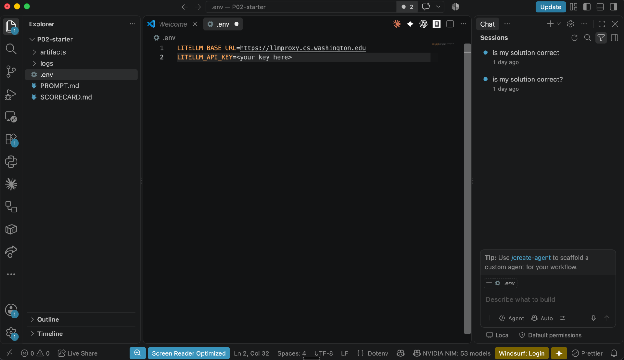
Create a folder for the project. Inside it, create a file named .env.
Inside, paste these two lines:
LITELLM_BASE_URL=https://llmproxy.cs.washington.edu
LITELLM_API_KEY=<your key here>
Replace <your key here> with your given API key (it starts with sk).
3. VS Code
Open code.visualstudio.com and click the Download button.
Open the downloaded file. Drag Visual Studio Code into Applications.
Open Visual Studio Code from Applications so macOS trusts it. VS Code is installed when it opens to its welcome page.
4. AI chat in VS Code
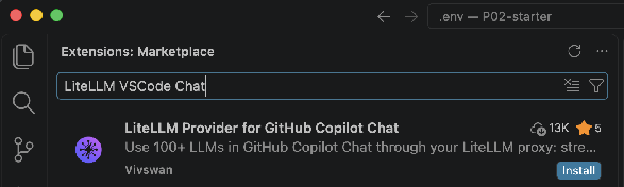
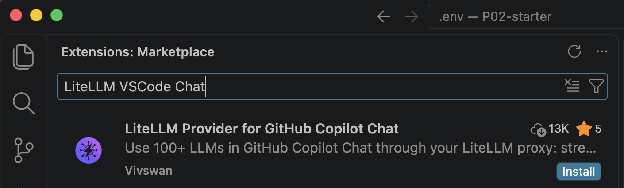
In VS Code, click the Extensions icon in the bar on the far left: four squares. Or press Cmd+Shift+X.
Search for LiteLLM. Install “LiteLLM Provider for GitHub Copilot Chat” by Vivswan.
Open the Command Palette with Cmd+Shift+P. Run “Preferences: Open User Settings (JSON)”.
Your settings file should look like this. If it already has other settings, keep them and add these two entries inside the same { }, separated by commas:
{
"litellm-vscode-chat.servers": [
{
"label": "CSE 490",
"baseUrl": "https://llmproxy.cs.washington.edu",
"auth": { "apiKey": "<your key here>" },
"models": { "parameters": { "internal/Qwen3.6-35B-A3B": {
"extra_body": { "chat_template_kwargs": { "enable_thinking": false } } } } }
}
],
"chat.agent.enabled": false
}
Replace <your key here> with your API key. Save the file.
The “models” lines turn off Qwen’s thinking mode. With it on, the gateway times out before Qwen answers and the chat says “Sorry, no response was returned.”
The last line keeps the chat in Ask mode, so the AI answers in chat and you save every file yourself. If your chat box has no Ask/Agent switch, the line does nothing and is fine to keep.
The LiteLLM extension can also take the server through a form: if it opens its Dashboard, choose “Add your first server” and give the same label, base URL and key. The Qwen lines still go in the settings file.
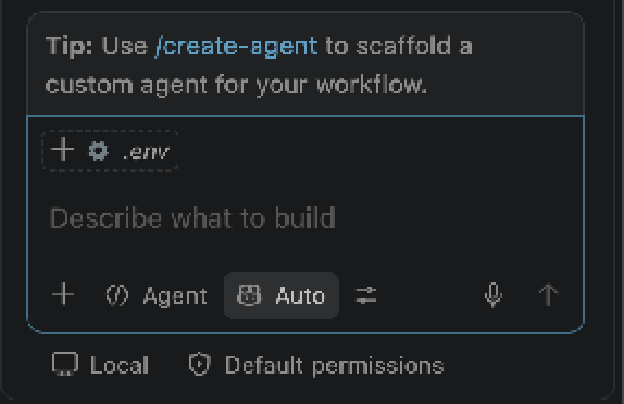
Open the chat panel: the speech-bubble icon at the top, or Ctrl+Cmd+I. Click the model picker at the bottom of the chat box. It reads Auto until you choose. Under CSE 490, pick one of external/zai.glm-5, external/haiku-4-5-20251001 and internal/Qwen3.6-35B-A3B. If they are not listed, click “Manage Models…”, then “Add Models”, then “LiteLLM”, choose the CSE 490 server, and tick the three. If the picker asks you to sign in to GitHub first, sign in; the course key still pays for every message. I can’t see the picker from here, so this part has no check. The last step, Model gateway, proves your key can reach all three.
5. Course extension
Download the course extension, cse490-tools.vsix, from https://github.com/cse490A2/cse490-published/releases/latest/download/cse490-tools.vsix In VS Code, open the Extensions panel, open the three-dots menu at the top, choose “Install from VSIX…”, and pick the downloaded file.
6. Project files
Download the starter files from https://github.com/cse490A2/cse490-published/raw/main/projects/P02/starter.zip and unzip them. Move everything inside the unpacked starter folder into your project folder, the one that holds .env: PROMPT.md, SCORECARD.md, an artifacts folder for the games the models write, and a logs folder for your chat log.
7. Model gateway
Prove the key works. In a terminal in your project folder:
curl -s -H "Authorization: Bearer <your key>" https://llmproxy.cs.washington.edu/v1/models
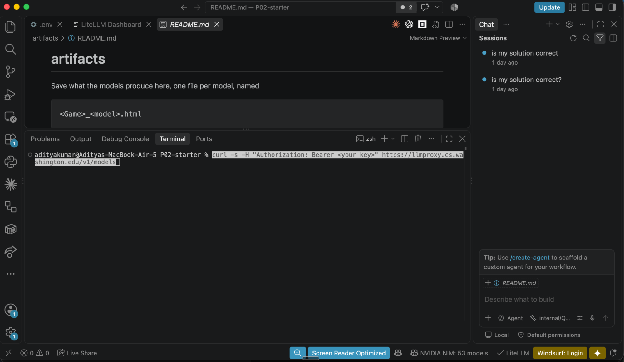
Replace <your key> with your key: the angle brackets go, the space after Bearer stays, so it reads Bearer sk-… . A working key returns a list of models with the three course models on it: external/zai.glm-5, external/haiku-4-5-20251001 and internal/Qwen3.6-35B-A3B. An “invalid key” error means a typo. No response at all means a network problem; if it keeps happening, tell the course staff.
Windows
1. VS Code
Open code.visualstudio.com and click the Download button.
Open the downloaded file. The defaults are fine.
Open Visual Studio Code from the Start menu. VS Code is installed when it opens to its welcome page.
2. Course key
Create a folder for the project. Inside it, create a file named .env.
Inside, paste these two lines:
LITELLM_BASE_URL=https://llmproxy.cs.washington.edu
LITELLM_API_KEY=<your key here>
Replace <your key here> with your given API key (it starts with sk).
3. VS Code
Open code.visualstudio.com and click the Download button.
Open the downloaded file. The defaults are fine.
Open Visual Studio Code from the Start menu. VS Code is installed when it opens to its welcome page.
4. AI chat in VS Code
In VS Code, click the Extensions icon in the bar on the far left: four squares. Or press Ctrl+Shift+X.
Search for LiteLLM. Install “LiteLLM Provider for GitHub Copilot Chat” by Vivswan.
Open the Command Palette with Ctrl+Shift+P. Run “Preferences: Open User Settings (JSON)”.
Your settings file should look like this. If it already has other settings, keep them and add these two entries inside the same { }, separated by commas:
{
"litellm-vscode-chat.servers": [
{
"label": "CSE 490",
"baseUrl": "https://llmproxy.cs.washington.edu",
"auth": { "apiKey": "<your key here>" },
"models": { "parameters": { "internal/Qwen3.6-35B-A3B": {
"extra_body": { "chat_template_kwargs": { "enable_thinking": false } } } } }
}
],
"chat.agent.enabled": false
}
Replace <your key here> with your API key. Save the file.
The “models” lines turn off Qwen’s thinking mode. With it on, the gateway times out before Qwen answers and the chat says “Sorry, no response was returned.”
The last line keeps the chat in Ask mode, so the AI answers in chat and you save every file yourself. If your chat box has no Ask/Agent switch, the line does nothing and is fine to keep.
The LiteLLM extension can also take the server through a form: if it opens its Dashboard, choose “Add your first server” and give the same label, base URL and key. The Qwen lines still go in the settings file.
Open the chat panel: the speech-bubble icon at the top, or Ctrl+Alt+I. Click the model picker at the bottom of the chat box. It reads Auto until you choose. Under CSE 490, pick one of external/zai.glm-5, external/haiku-4-5-20251001 and internal/Qwen3.6-35B-A3B. If they are not listed, click “Manage Models…”, then “Add Models”, then “LiteLLM”, choose the CSE 490 server, and tick the three. If the picker asks you to sign in to GitHub first, sign in; the course key still pays for every message. I can’t see the picker from here, so this part has no check. The last step, Model gateway, proves your key can reach all three.
5. Course extension
Download the course extension, cse490-tools.vsix, from https://github.com/cse490A2/cse490-published/releases/latest/download/cse490-tools.vsix In VS Code, open the Extensions panel, open the three-dots menu at the top, choose “Install from VSIX…”, and pick the downloaded file.
6. Project files
Download the starter files from https://github.com/cse490A2/cse490-published/raw/main/projects/P02/starter.zip and unzip them. Move everything inside the unpacked starter folder into your project folder, the one that holds .env: PROMPT.md, SCORECARD.md, an artifacts folder for the games the models write, and a logs folder for your chat log.
7. Model gateway
Prove the key works. In PowerShell in your project folder:
curl.exe -s -H "Authorization: Bearer <your key>" https://llmproxy.cs.washington.edu/v1/models
Replace <your key> with your key: the angle brackets go, the space after Bearer stays, so it reads Bearer sk-… . A working key returns a list of models with the three course models on it: external/zai.glm-5, external/haiku-4-5-20251001 and internal/Qwen3.6-35B-A3B. An “invalid key” error means a typo. No response at all means a network problem; if it keeps happening, tell the course staff.
Linux
1. VS Code
Open the VS Code download page. Get the package for your distribution: .deb for Ubuntu.
Install the package you downloaded. On Ubuntu, open it, or run apt on it in a terminal.
Open Visual Studio Code. It is installed when it opens to its welcome page.
2. Course key
Create a folder for the project. Inside it, create a file named .env.
Inside, paste these two lines:
LITELLM_BASE_URL=https://llmproxy.cs.washington.edu
LITELLM_API_KEY=<your key here>
Replace <your key here> with your given API key (it starts with sk).
3. VS Code
Open the VS Code download page. Get the package for your distribution: .deb for Ubuntu.
Install the package you downloaded. On Ubuntu, open it, or run apt on it in a terminal.
Open Visual Studio Code. It is installed when it opens to its welcome page.
4. AI chat in VS Code
In VS Code, click the Extensions icon in the bar on the far left: four squares. Or press Ctrl+Shift+X.
Search for LiteLLM. Install “LiteLLM Provider for GitHub Copilot Chat” by Vivswan.
Open the Command Palette with Ctrl+Shift+P. Run “Preferences: Open User Settings (JSON)”.
Your settings file should look like this. If it already has other settings, keep them and add these two entries inside the same { }, separated by commas:
{
"litellm-vscode-chat.servers": [
{
"label": "CSE 490",
"baseUrl": "https://llmproxy.cs.washington.edu",
"auth": { "apiKey": "<your key here>" },
"models": { "parameters": { "internal/Qwen3.6-35B-A3B": {
"extra_body": { "chat_template_kwargs": { "enable_thinking": false } } } } }
}
],
"chat.agent.enabled": false
}
Replace <your key here> with your API key. Save the file.
The “models” lines turn off Qwen’s thinking mode. With it on, the gateway times out before Qwen answers and the chat says “Sorry, no response was returned.”
The last line keeps the chat in Ask mode, so the AI answers in chat and you save every file yourself. If your chat box has no Ask/Agent switch, the line does nothing and is fine to keep.
The LiteLLM extension can also take the server through a form: if it opens its Dashboard, choose “Add your first server” and give the same label, base URL and key. The Qwen lines still go in the settings file.
Open the chat panel: the speech-bubble icon at the top, or Ctrl+Alt+I. Click the model picker at the bottom of the chat box. It reads Auto until you choose. Under CSE 490, pick one of external/zai.glm-5, external/haiku-4-5-20251001 and internal/Qwen3.6-35B-A3B. If they are not listed, click “Manage Models…”, then “Add Models”, then “LiteLLM”, choose the CSE 490 server, and tick the three. If the picker asks you to sign in to GitHub first, sign in; the course key still pays for every message. I can’t see the picker from here, so this part has no check. The last step, Model gateway, proves your key can reach all three.
5. Course extension
Download the course extension, cse490-tools.vsix, from https://github.com/cse490A2/cse490-published/releases/latest/download/cse490-tools.vsix In VS Code, open the Extensions panel, open the three-dots menu at the top, choose “Install from VSIX…”, and pick the downloaded file.
6. Project files
Download the starter files from https://github.com/cse490A2/cse490-published/raw/main/projects/P02/starter.zip and unzip them. Move everything inside the unpacked starter folder into your project folder, the one that holds .env: PROMPT.md, SCORECARD.md, an artifacts folder for the games the models write, and a logs folder for your chat log.
7. Model gateway
Prove the key works. In a terminal in your project folder:
curl -s -H "Authorization: Bearer <your key>" https://llmproxy.cs.washington.edu/v1/models
Replace <your key> with your key: the angle brackets go, the space after Bearer stays, so it reads Bearer sk-… . A working key returns a list of models with the three course models on it: external/zai.glm-5, external/haiku-4-5-20251001 and internal/Qwen3.6-35B-A3B. An “invalid key” error means a typo. No response at all means a network problem; if it keeps happening, tell the course staff.