Project 2: Insert Prompt to Play
Due: Tuesday 11:59 pm
Prerequisites: Follow the prereq instructions to set up your AI workspace. We will be using Visual Studio Code (VS Code) as our IDE for this course and LiteLLM as our model gateway.
Compare the output of different models under the same prompt spec. You will first complete a given prompt file, which describes a mashup of two arcade games: Breakout and Pong. Document your observations from the models’ outputs, and make any necessary adjustments. Then, if you want to further explore differences in models, write a spec of your own blend of two arcade games.
Instructions
- Open the starter folder in VS Code and open the chat panel. Its artifacts folder is where the games go, and its logs folder keeps your chat log. Refer to the prereq instructions.
- Write your prompt in PROMPT.md. It already holds the Breakout doubles prompt. Fill in the four lines under its Theme heading: Colors, Teammate’s name, Win screen words, and Lose screen words.
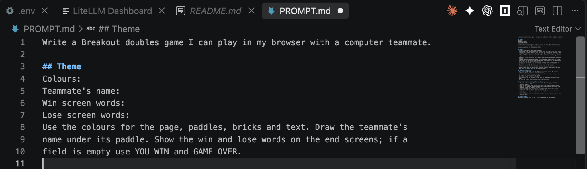
- Once PROMPT.md is finished, send it to each of the three course models from the model selection menu below the prompt box: external/zai.glm-5, external/haiku-4-5-20251001, and internal/Qwen3.6-35B-A3B. They are three different companies’ models, all served through the course gateway. VS Code attaches the file you have open to the chat as a small chip above the prompt box. Every model must get the same prompt and nothing else, so click the X on any chip before you send. Once a model is finished, start a new chat and switch to the next model under CSE 490. Save each created game in the artifacts folder as <Game>_<model>.html: the game name, one underscore, the model’s short name (the part after the slash), for example artifacts/BreakoutDoubles_zai.glm-5.html.
- For each model, document your observations inside SCORECARD.md. Write a few brief sentences explaining what you liked, disliked, and what surprised you. Here’s an example of a filled out SCORECARD.md
- Now try playing each created game, watching your teammate’s paddle on the right. Play each one inside VS Code: open the Command Palette (Mac: Cmd+Shift+P, Win: Ctrl+Shift+P) and run CSE 490: Play this game. Opening the file in your browser works too. Continue filling out SCORECARD.md, documenting whether the game is playable, likes, dislikes, and what surprised you.
- There may be a model that fails. In this case, use the same model that failed and continue prompting until you’re satisfied with its output. Change the prompt, not the code.
Make it awesome
This part is optional and worth 5 extra points. Write a spec of your own that blends two arcade games: Pong played on Frogger’s road, Galaga with Mappy’s trampolines, whatever you can picture. Put it in PROMPT2.md, in the shape of the Breakout doubles prompt: a theme, the rules, the technical constraints, the expected behavior, and the output format. Then repeat steps 3 to 6 with it: the same three models, a game file per model named after your game, a SCORECARD.md block for each with Prompt file set to PROMPT2.md.
Some examples of arcade games (a longer list can be found here):
Turnin
By Tuesday 11:59 pm:
- In VS Code, open the Command Palette (Mac: Cmd+Shift+P, Win: Ctrl+Shift+P) and run CSE 490: Package for turn-in. It writes P02-submission.zip next to PROMPT.md. If the palette shows no CSE 490 entry, install the course extension from the prereq instructions and run it again.
- Upload P02-submission.zip to Canvas.
Grading
Your submission is autograded. It checks that each step was properly followed: the Breakout doubles prompt in PROMPT.md, one game file per model, and a SCORECARD.md block for each of the three course models. If you made it awesome, it checks the same for PROMPT2.md and its games, worth 5 extra points on top of the 100. Every check is pass or fail. It does not judge code style, prompt wording, how good the game is, or how many tries it took.
Reference
The Breakout doubles prompt is PROMPT.md in the starter files. It has five sections: Theme, Rules, Technical constraints, Expected behavior, and Output format. You fill in Theme and leave the rest as written.